Sitecore 9.2 Installation with SIA
Sitecore Installation Assistant(SIA)
SIA is a user interface that assists developers, in installing Sitecore XP Developer Workstation (XP Single) and Sitecore XM Developer Workstation (XM Scaled). The SIA was released along with Sitecore 9.2 and it instantly became popular among the developer community as this tool simplifies the installation to a great extent. The tools save a lot of time compared to SIF as it assists developers to review system requirements, install the prerequisites, and complete the installation process.
Steps to install
1. Prerequisites:
IIS 10.0
Solr 7.5.0 - SSL Enabled
SQL Server 2016+
.NET Framework 4.7.2
.NET Core 2.1.7+ Windows Hosting Module
All Other Prerequisites are installed by SIA.
2. SOLR Installation
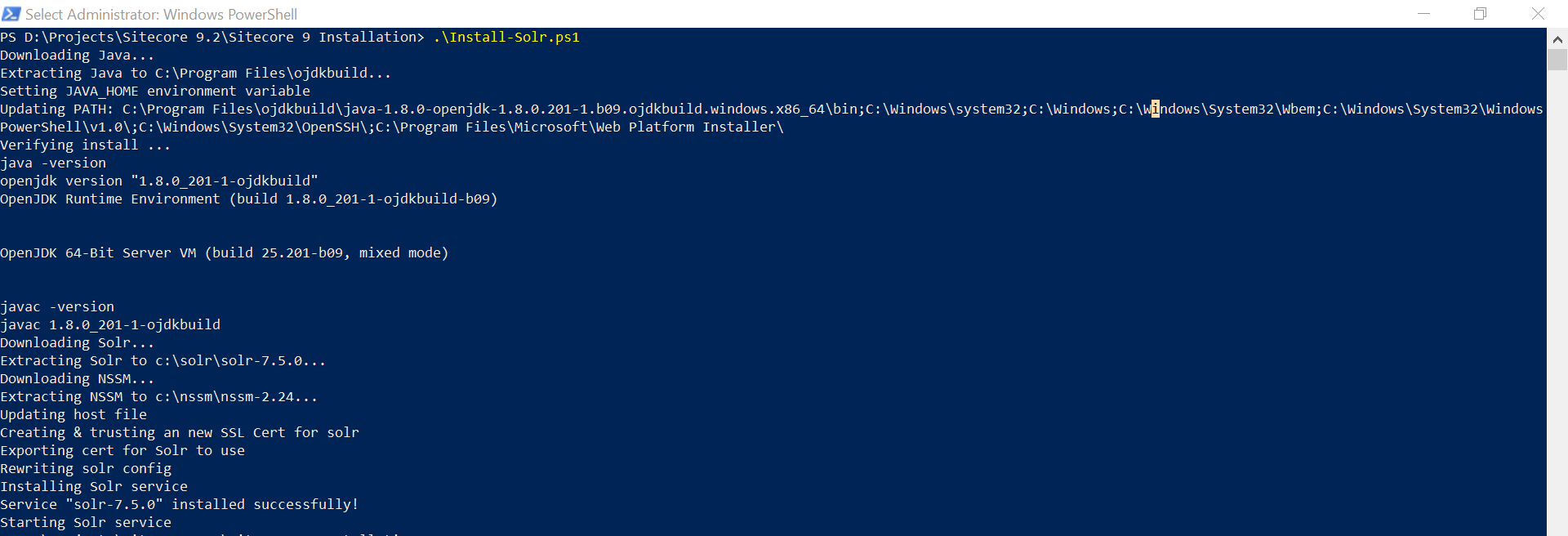
Java is a pre-requisite for SOLR, but however Mark Cassidy's script for SOLR installation installs the required Java version on its own.
Refer my article on solr here. Make sure to change the solr version to 7.5.0.
If execution fails, open Powershell as Administrator and run the below command.
Set-ExecutionPolicy UnrestrictedConfirm the changes to be made.
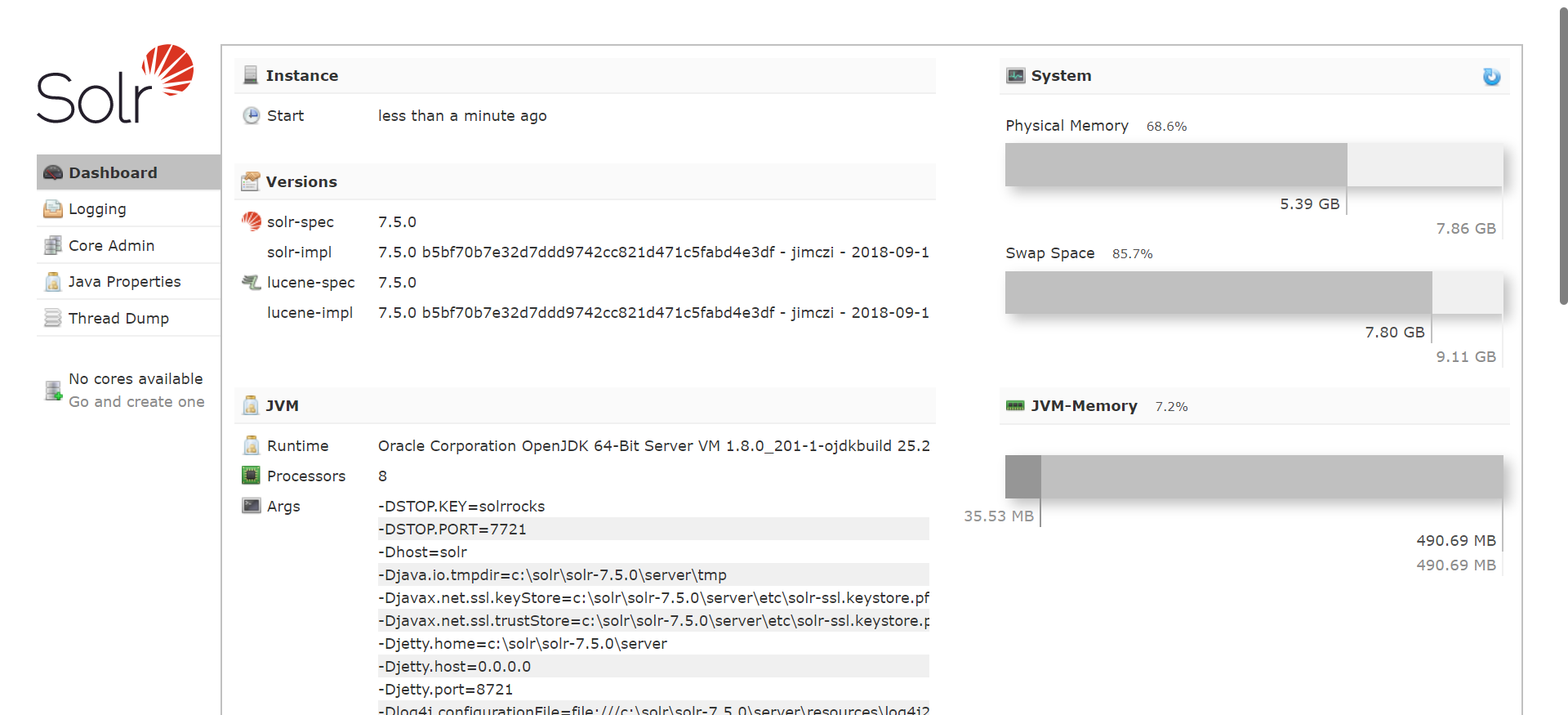
Installation completes and opens the SOLR Dashboard!!
3. .NET Framework Installation
I started this installation on a clean machine, so no existing .Net Framework/ .Net Core installations.
As per the developer installation guide, the required versions are as follows:
.NET Framework 4.7.1 or 4.7.2
NET Core 2.1.7 Windows Hosting Module for Sitecore Identity Server
Download and Install the .NET Framework 4.7.2 Developer pack from https://dotnet.microsoft.com/download/dotnet-framework/net472
Download and Install .NET Core v2.1.13 ASP.NET Core Runtime Hosting Module for Windows fromhttps://dotnet.microsoft.com/download/dotnet-core/2.1.
Microsoft Visual C++ 2015 redistributable required - Install if not already installed.
4. SQL Server
Download and Install SQL Server 2017 Express Edition from https://www.microsoft.com/en-in/sql-server/sql-server-editions-express
Download and Install the latest SSMS from https://docs.microsoft.com/en-us/sql/ssms/download-sql-server-management-studio-ssms?view=sql-server-ver15
Two issues faced during SQL Server access:
Had to enable sa for login
Had to enable SQL and Windows authentication under SQL server / Properties / Security.
Run command in SSMS for contained authentication.
  EXEC sp_configure 'contained', 1;

  RECONFIGURE;
This should be enough for the SQL Server to be configured.
5. Sitecore Installation Assistant
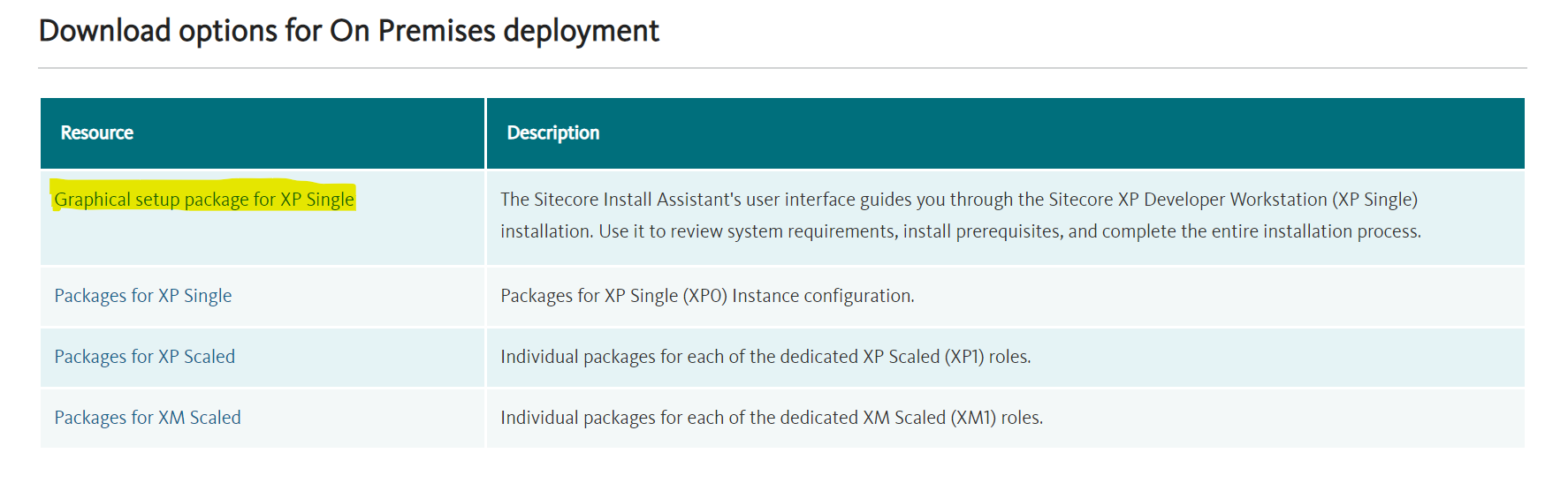
Download SIA from here.
Open setup.exe as an Administrator.
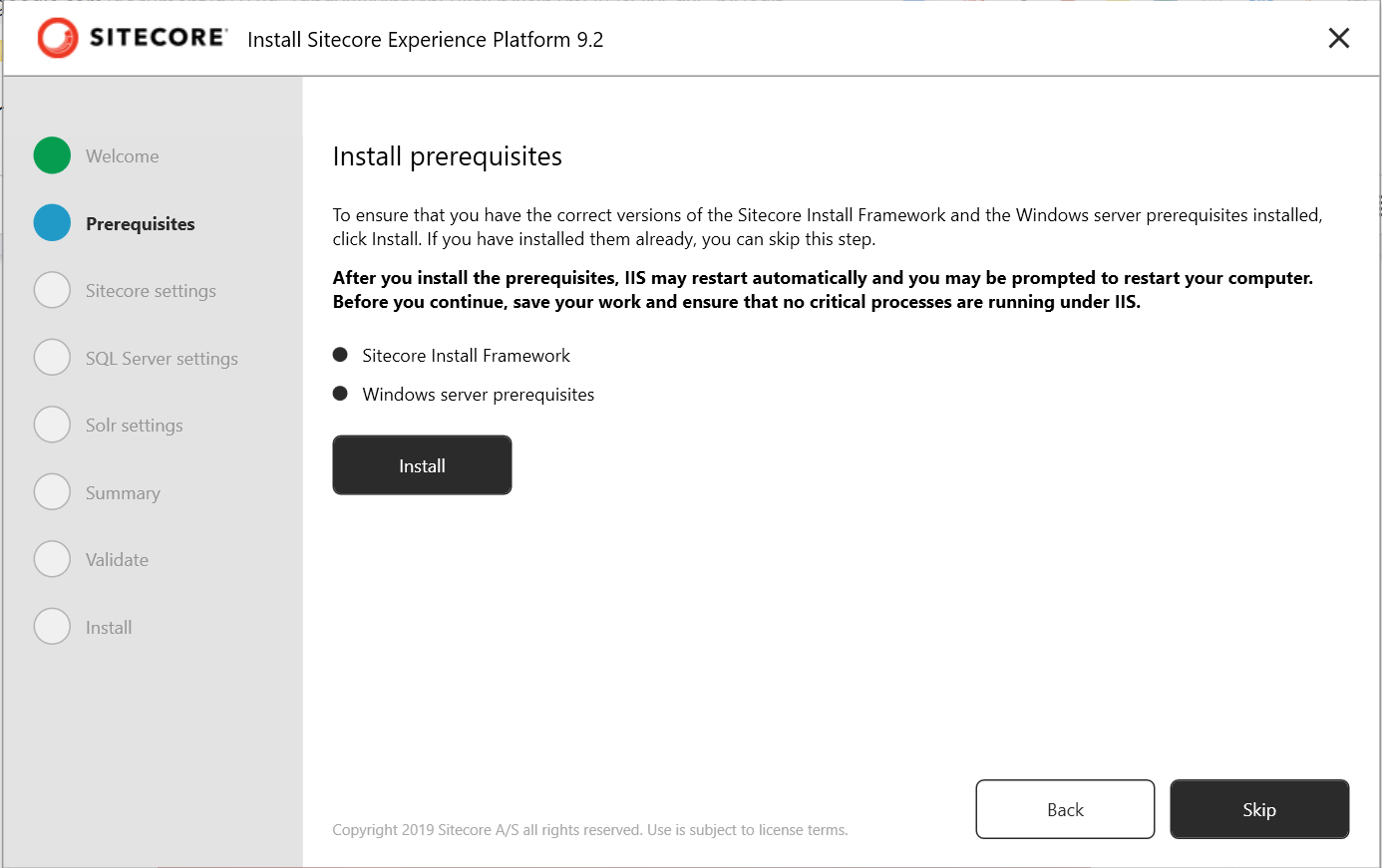
Install the Prerequistes.
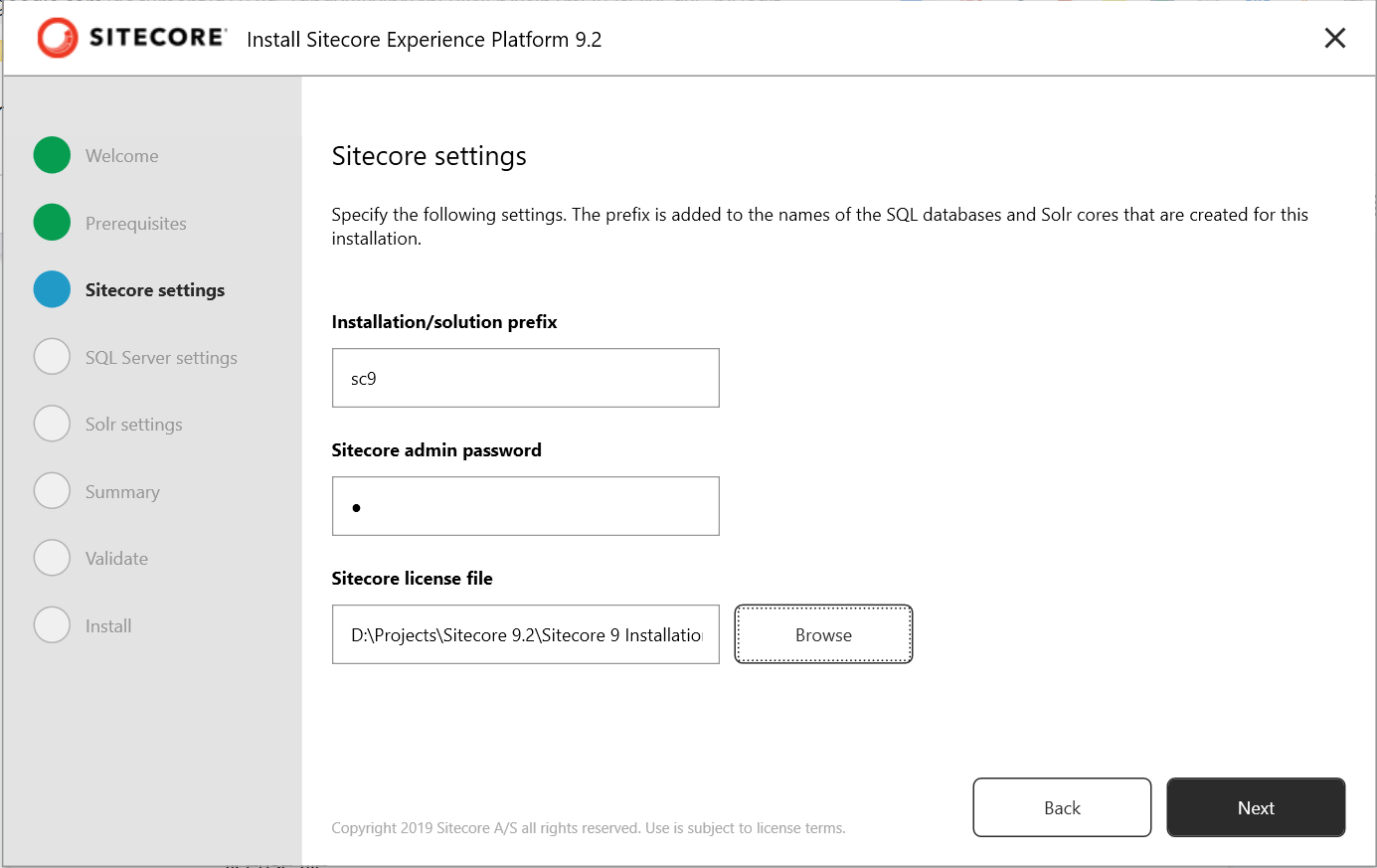
Enter the solution prefix, admin password (It’s not just “b†anymore!!) and select the license file.
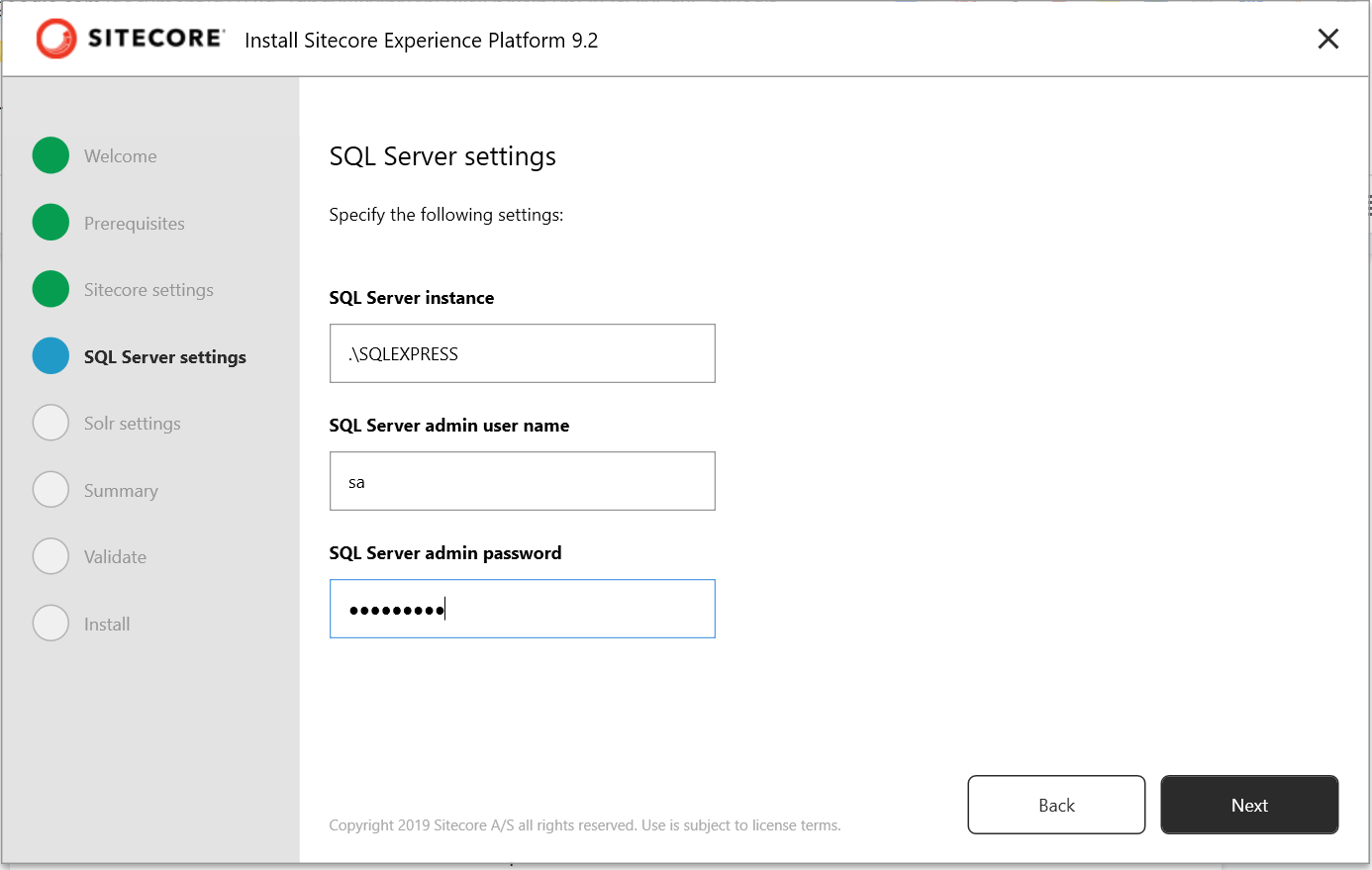
Enter SQL Server Settings.
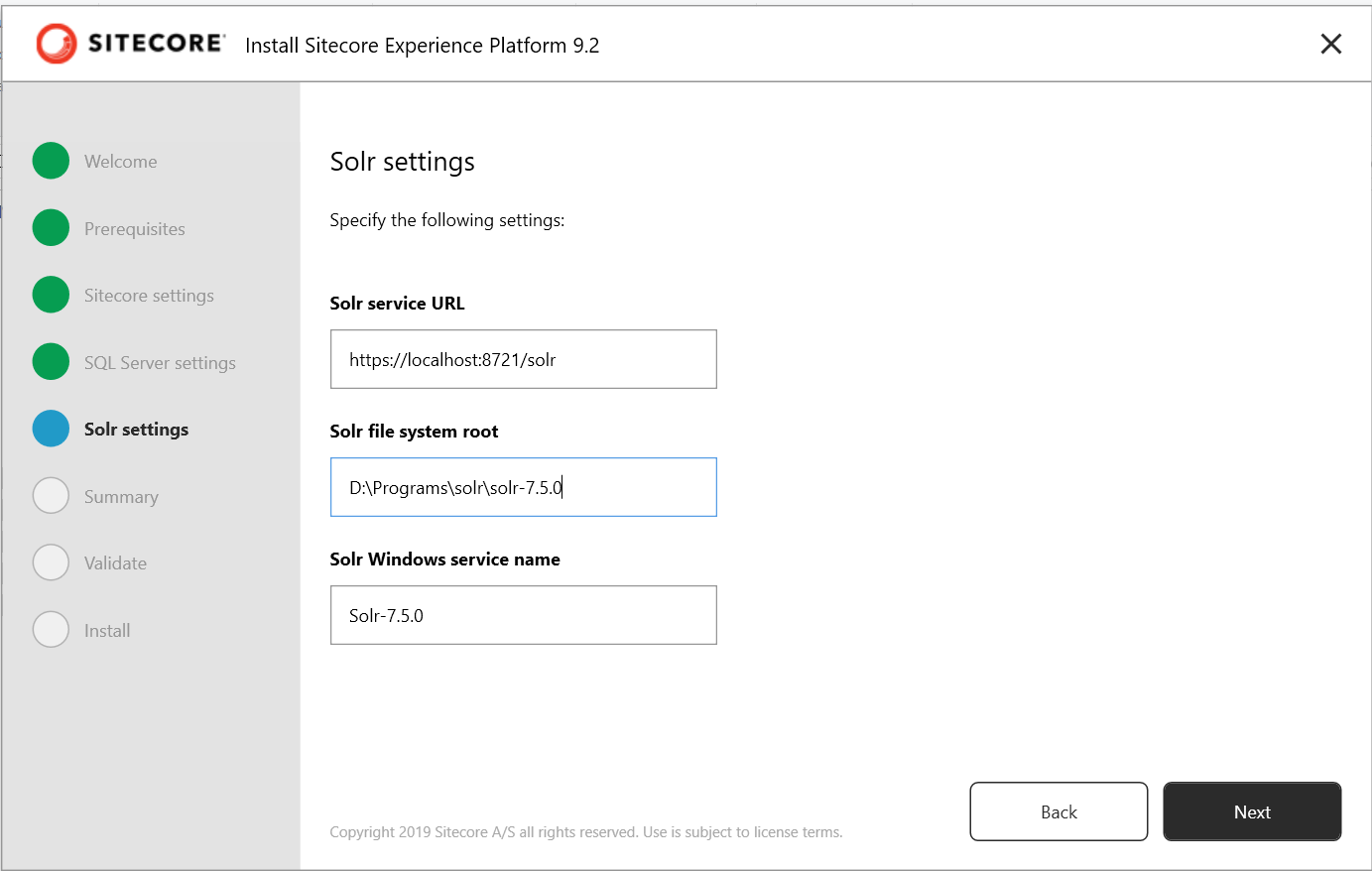
Enter your SOLR service settings.
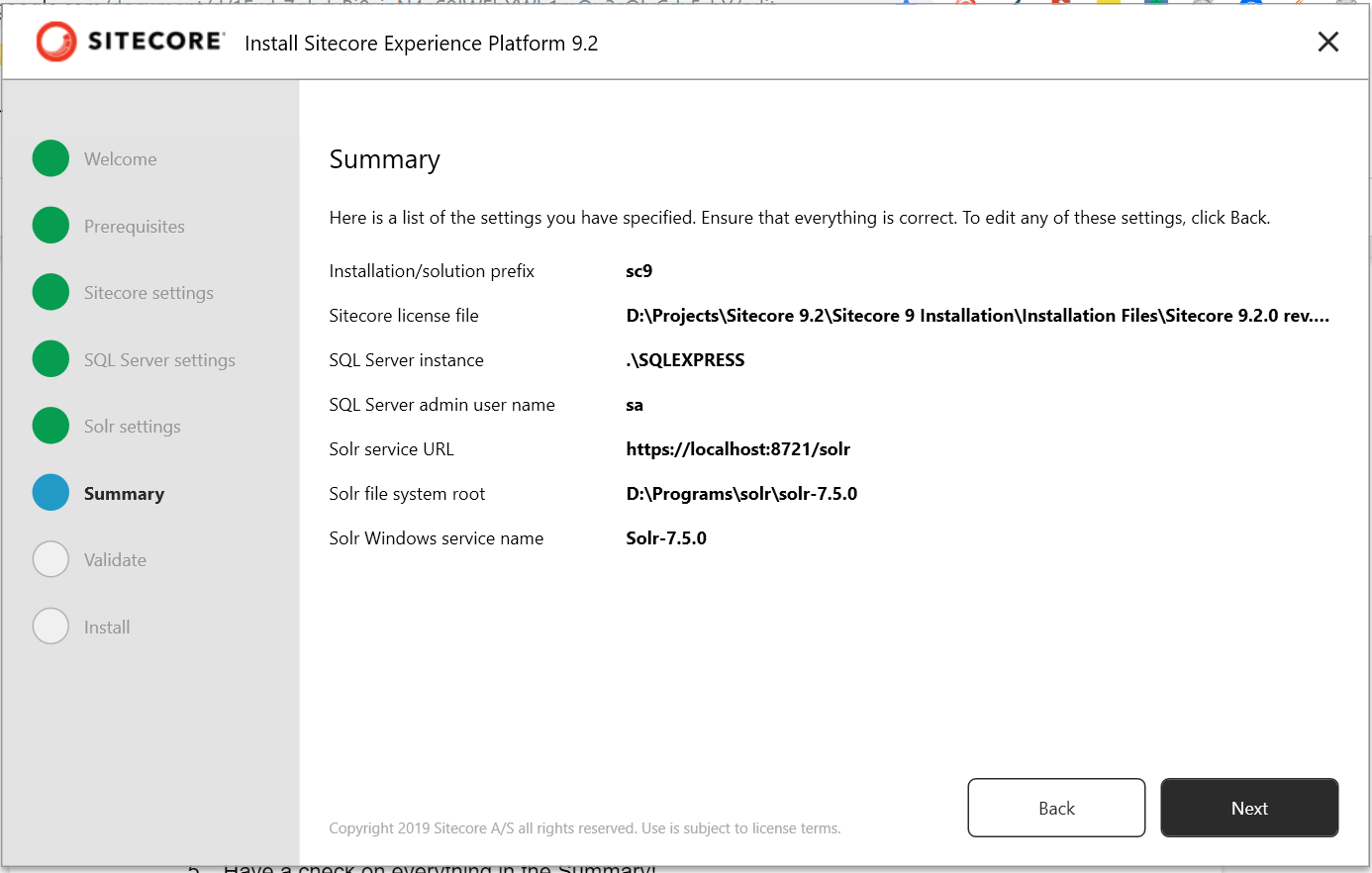
Check the Summary for installation.
Validate settings.
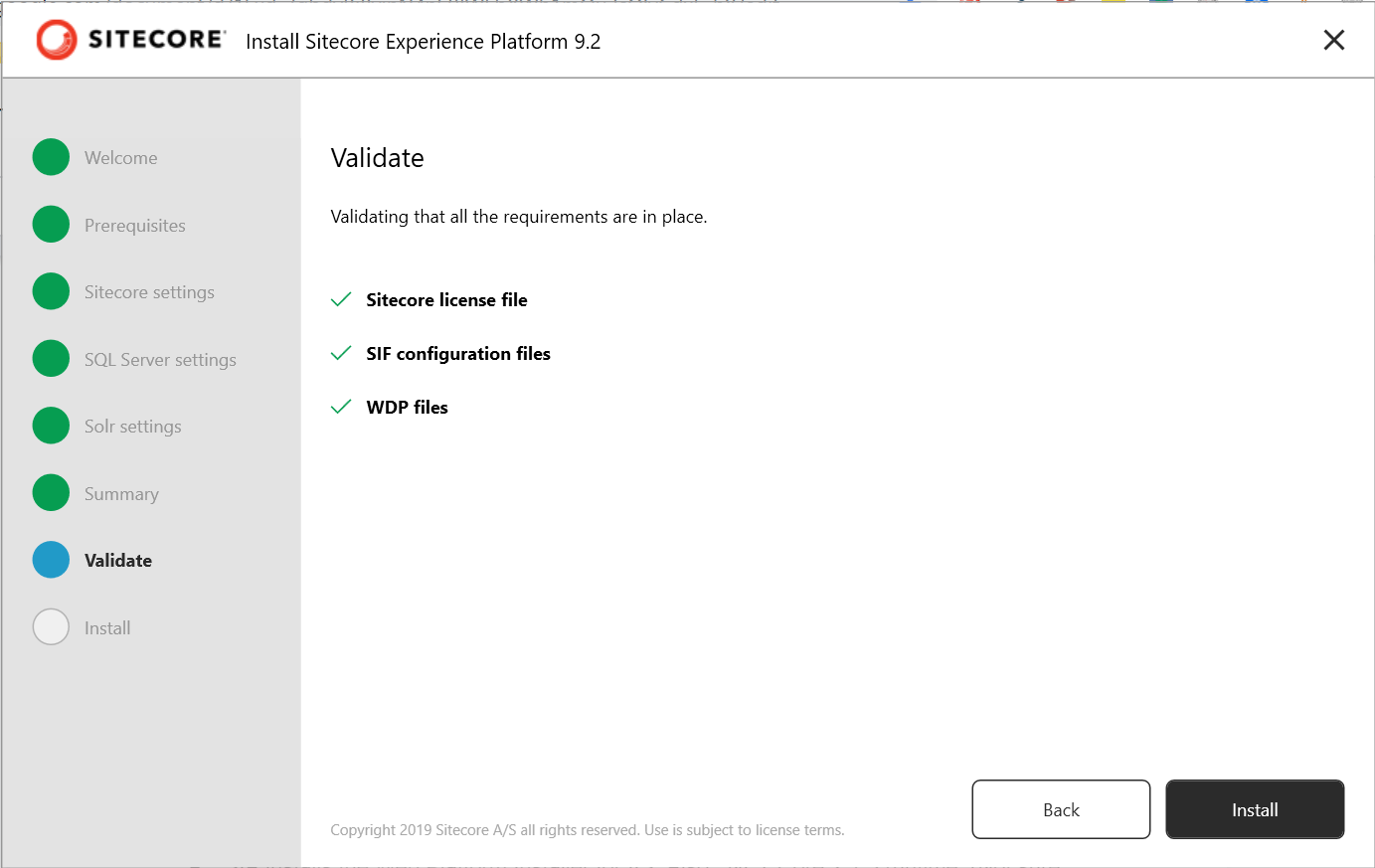
And finally, Install.
SIA installs the Web Platform Installer for IIS. Also, .NET Core 2.1.3 runtime. (Not sure why?)
I could not connect to the Solr service. Faced issues with SSL for SOLR. Followed Kamsar’s script:https://gist.github.com/kamsar/c3c8322c1ec40eac64c7dd546e5124de.
Restarted SOLR and the setup.
Stopped at Task 46: Could not connect to SQL Server. I had given the wrong credentials, my bad!. Restarted the setup with the correct ones.
NOTE: The Prerequisites have to be installed only once! The next time you run it, Skip it!
Yayyy!! Setup Complete.
Sitecore Installation is no more a skill!! :D Thanks to SIA!
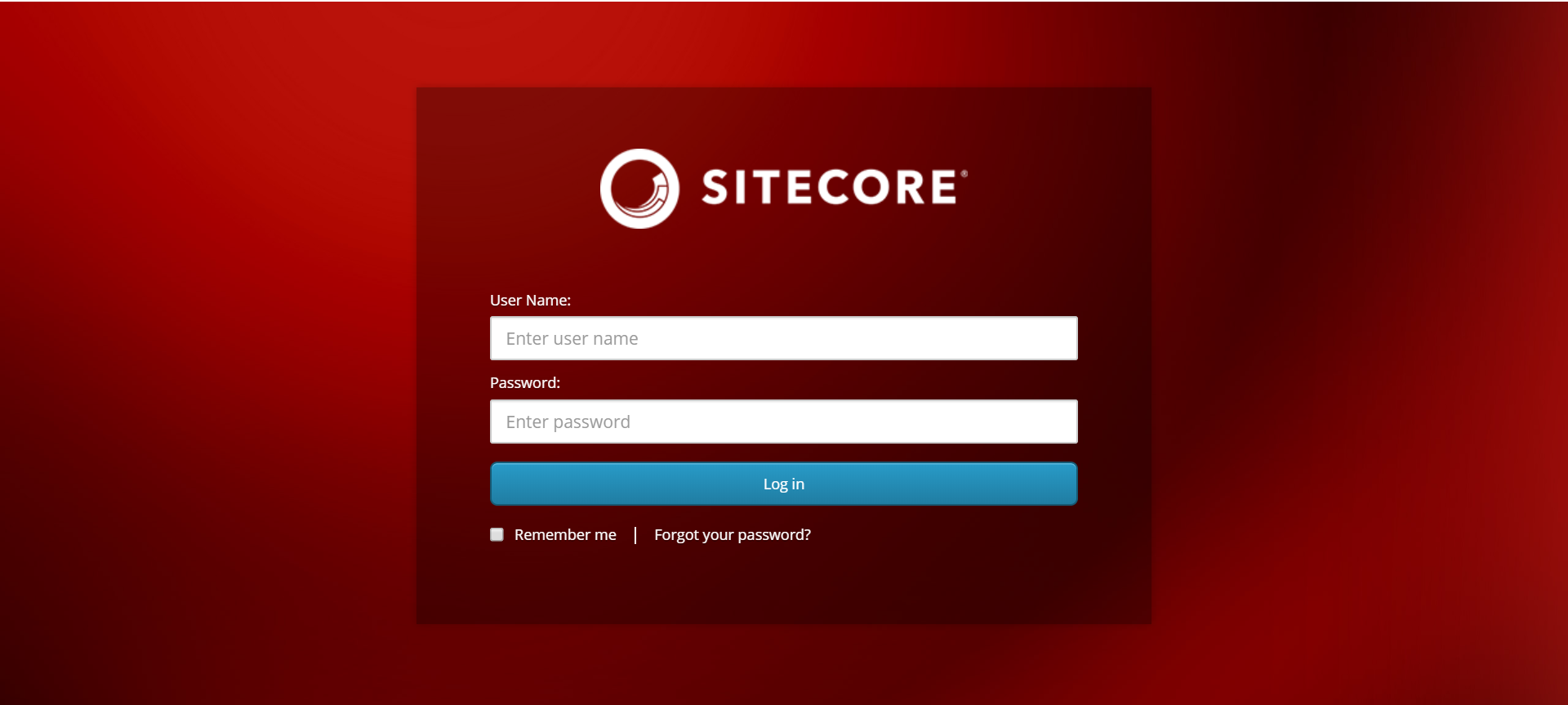
Three sites in the IIS:
Identity Server
Dev site
xConnect
I further tried to uninstall the .NET Core 2.1.13 runtime as SIA installed 2.1.3. But this way, the identity server doesn’t work! So, I installed it back.
References
Sitecore Experience Platform 9.2 Initial Release Download Link.
Mark Cassidy's script for SOLR Installation - https://gist.github.com/cassidydotdk/f3b1bf071694ab0aaea90ed169981132
Kamsar's script for SOLR SSL setup - https://gist.github.com/kamsar/c3c8322c1ec40eac64c7dd546e5124de