Sitecore 9.3 Installation with SIA
Sitecore Installation Assistant(SIA)
SIA is a user interface which assists developers in installing Sitecore XP Developer Workstation (XP Single) and Sitecore XM Developer Workstation (XM Scaled). The SIA was released along with Sitecore 9.2 and it instantly became popular among the developer community as this tool simplifies the installation to a great extent. The tools saves lot of time compared to SIF as it assists developers to review system requirements,install the prerequisites and complete the installation process.
Upgrades in SIA 9.3 vs SIA 9.2
I had previously written an article on Sitecore 9.2 Installation with SIA.
As compared to the previous SIA, we have the following upgrades:
SOLR search can now be installed right with SIA now.
Optionally install SXA (Sitecore Experience Accelerator) while installing Sitecore, which also installs SPE (Sitecore Powershell Extensions).
Steps for Installation
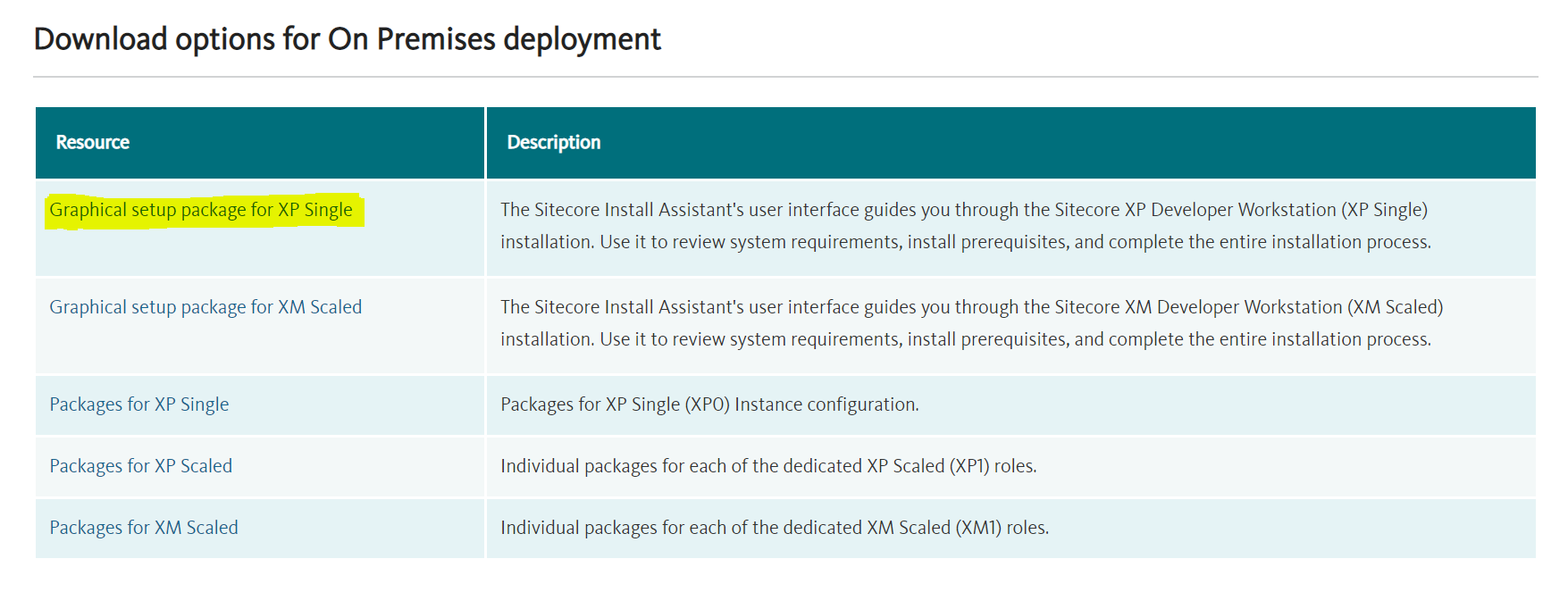
Download the package for installation from here. Download the Graphical setup package for XP Single.
Prerequisites
Hardware Requirements - A minimum of 4 core processor and a 16GB RAM.
IIS 10.0
Windows Server 2016/2019, Windows 10 (64-bit)
.NET Framework 4.7.2, .NET Core 2.1.12 Windows Hosting Module
Microsoft Visual C++ 2015 Redistributable
Microsoft SQL Server 2016 SP2 and 2017, MongoDB Server 4.0.5 (Required only if you're going to use MongoDB for the xDB or as the Session state provider)
All other pre-requisites will be installed by the SIA itself.
.NET Framework Installation
Download and Install the .NET Framework 4.7.2 Developer pack from https://dotnet.microsoft.com/download/dotnet-framework/net472
.NET Core v2.1.12 ASP.NET Core Runtime Hosting Module for Windows - Will be installed by SIA itself.
Microsoft Visual C++ 2015 Redistributable required - Install if not already installed.
SQL Server
Download and Install SQL Server 2017 Express Edition from https://www.microsoft.com/en-in/sql-server/sql-server-editions-express
Download and Install the latest SSMS from https://docs.microsoft.com/en-us/sql/ssms/download-sql-server-management-studio-ssms?view=sql-server-ver15
Run command in SSMS for contained authentication.
EXEC sp_configure 'contained', 1;
RECONFIGURE;
Extract the package downloaded in Step 1.
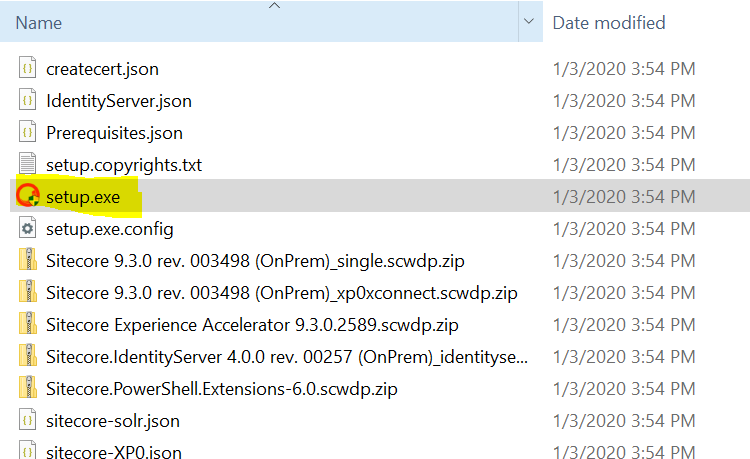
Open the file setup.exe as Administrator.
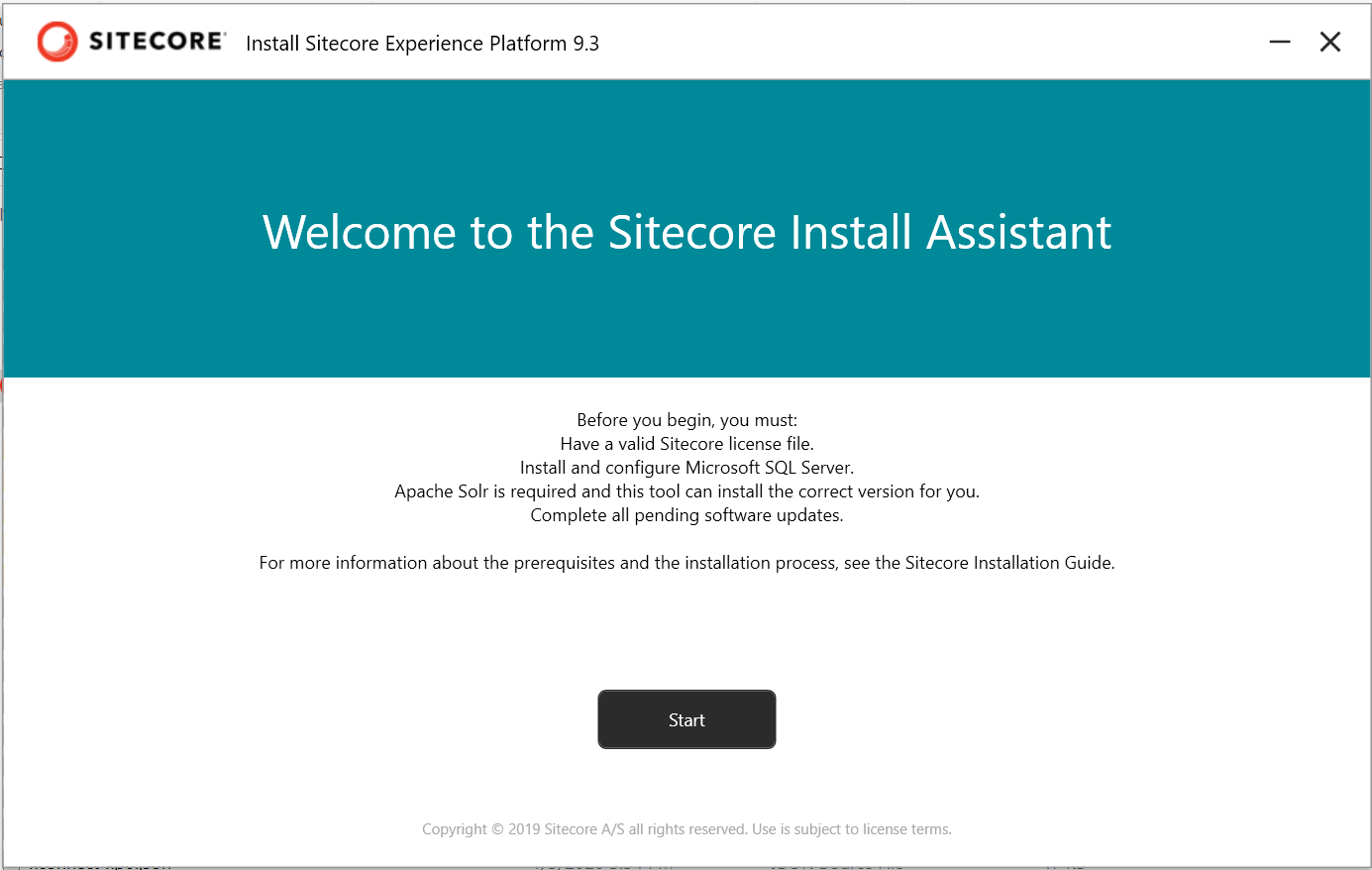
Welcome screen will be shown when the setup will be opened, with the instructions mentioned.
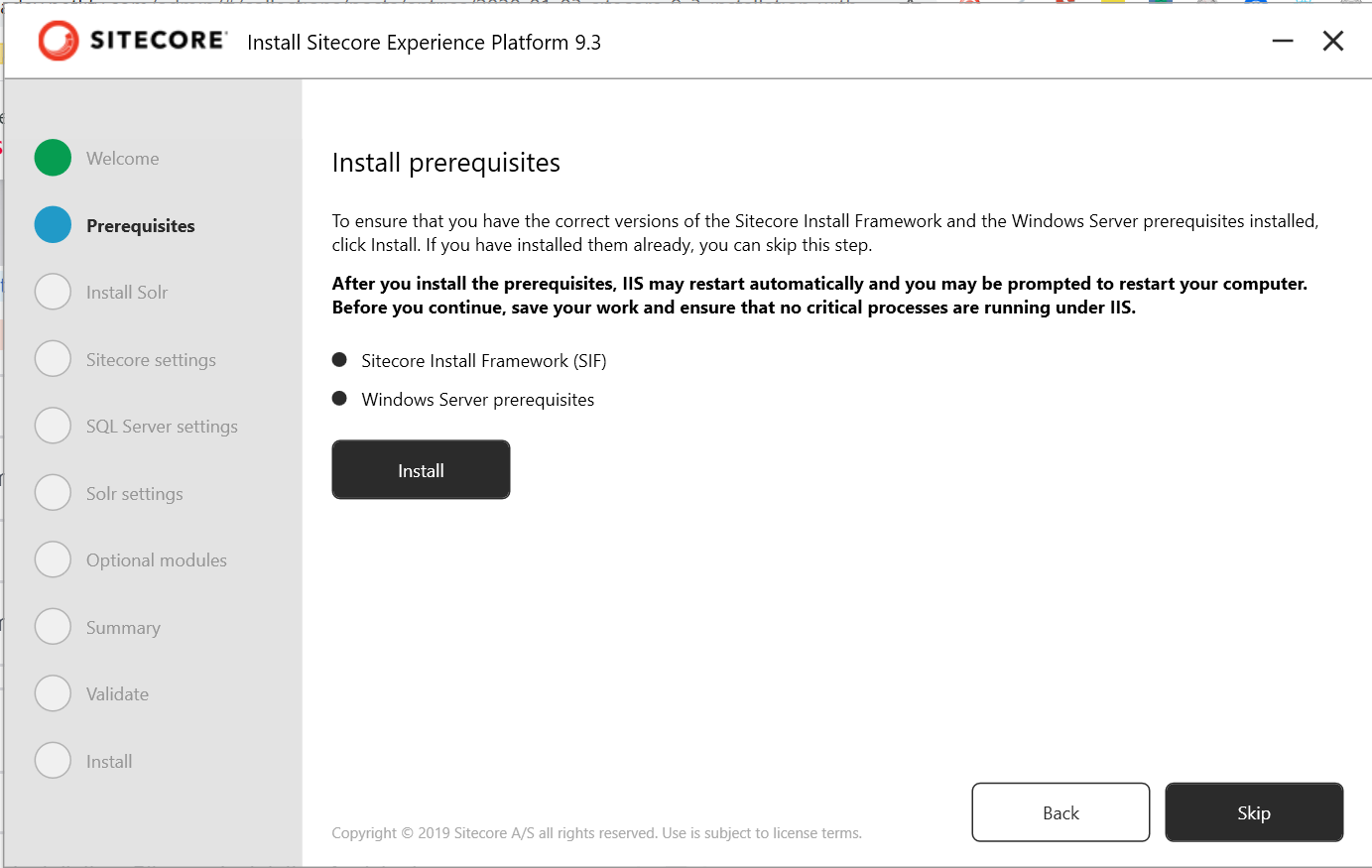
Install Prerequisites
This step will install SIF and the Windows server modules required for the installation. Note that this step needs to be run only once. If you face any issues and want to re-run the installation, then click on Skip This Step.
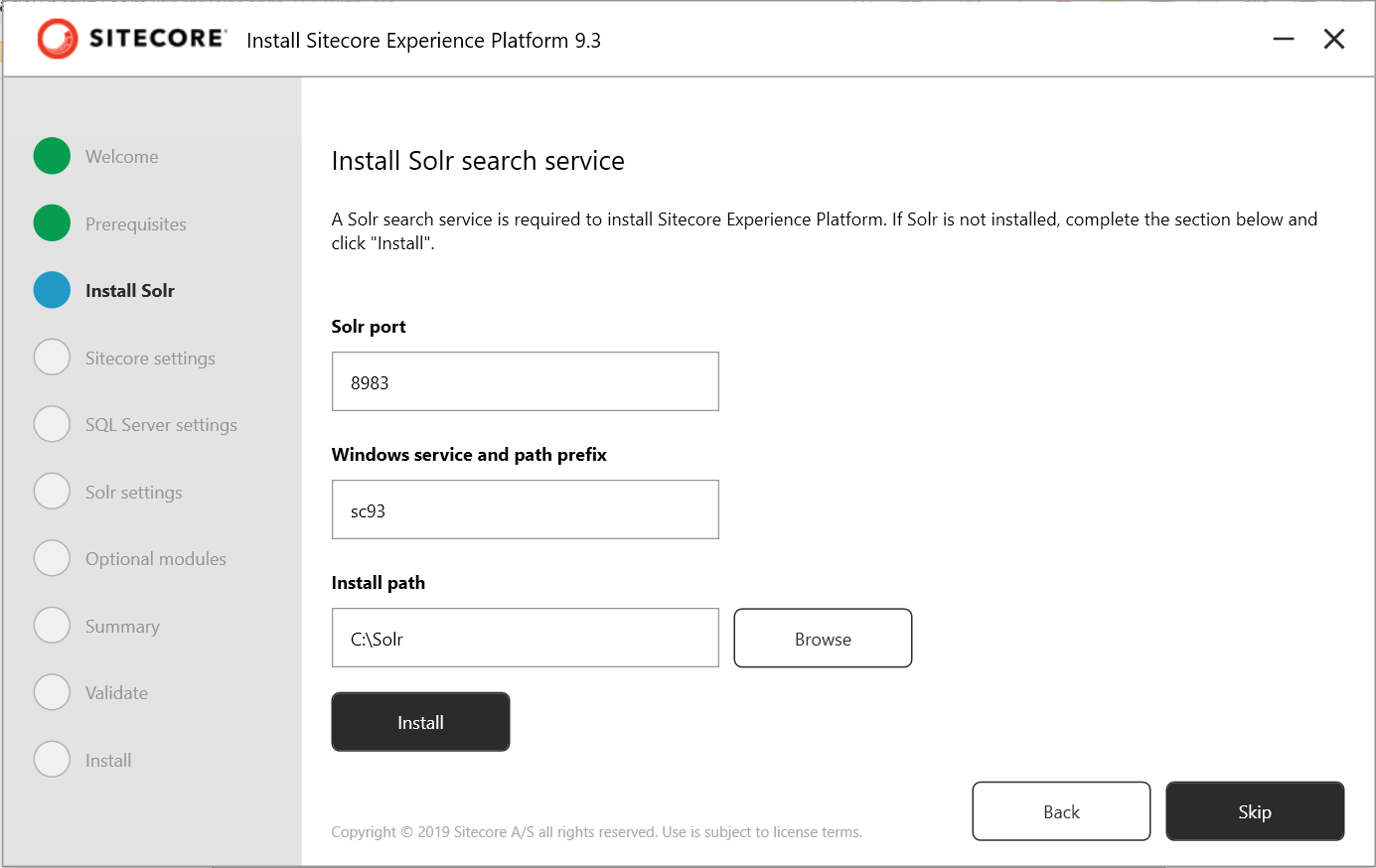
Install SOLR
This is a new feature introduced in SIA for Sitecore 9.3. Mention the port number (default set to 8983), a prefix and Install Path (default set to C:/Solr). The Install Path changed may give issues with SSL for SOLR which I faced during setting up Sitecore 9.2, change only if necessary. Also, skip this step if you re-run the installation.
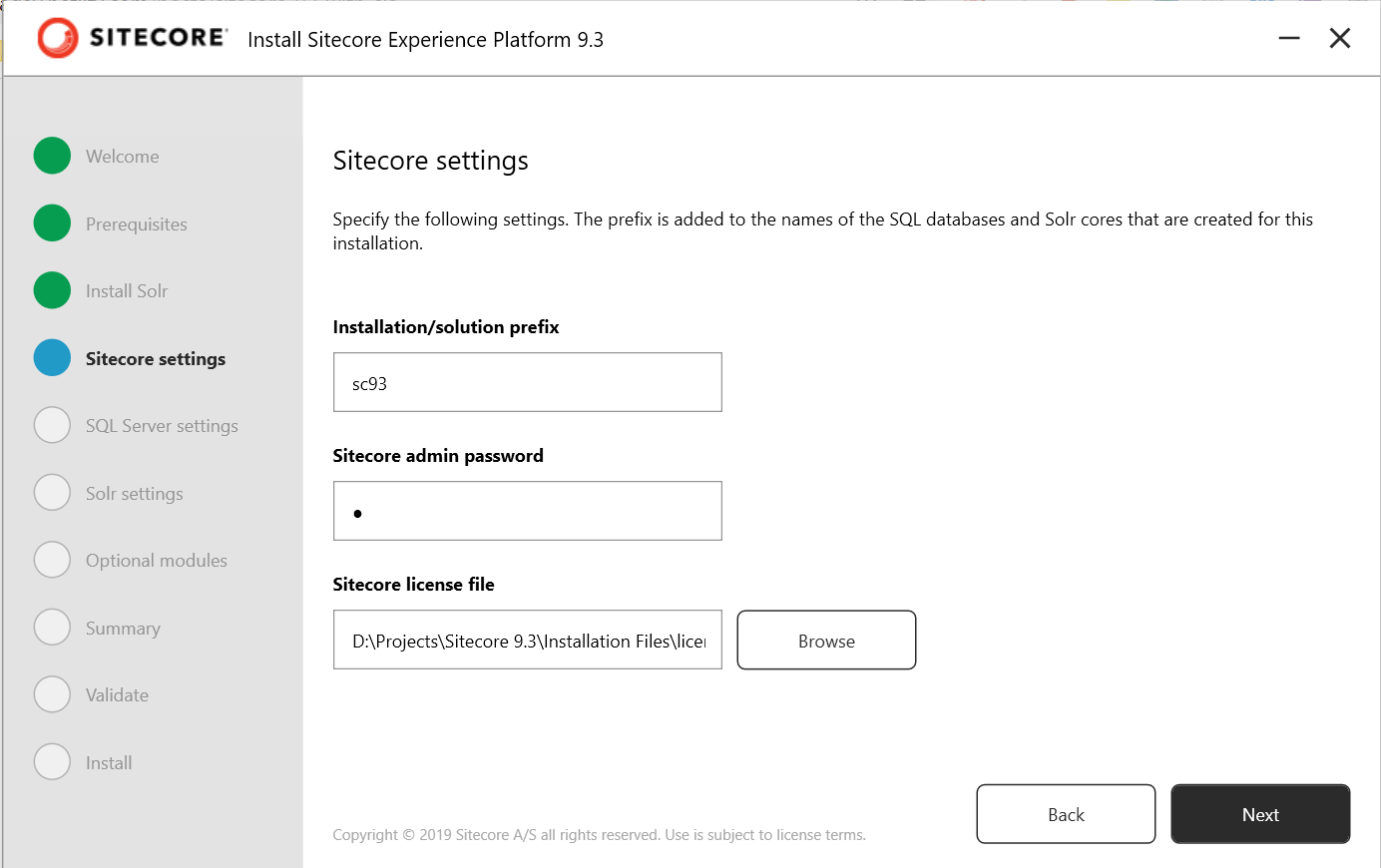
Sitecore Settings
Mention the Installation Prefix, Sitecore admin password and select the Sitecore license file, and click on Next.
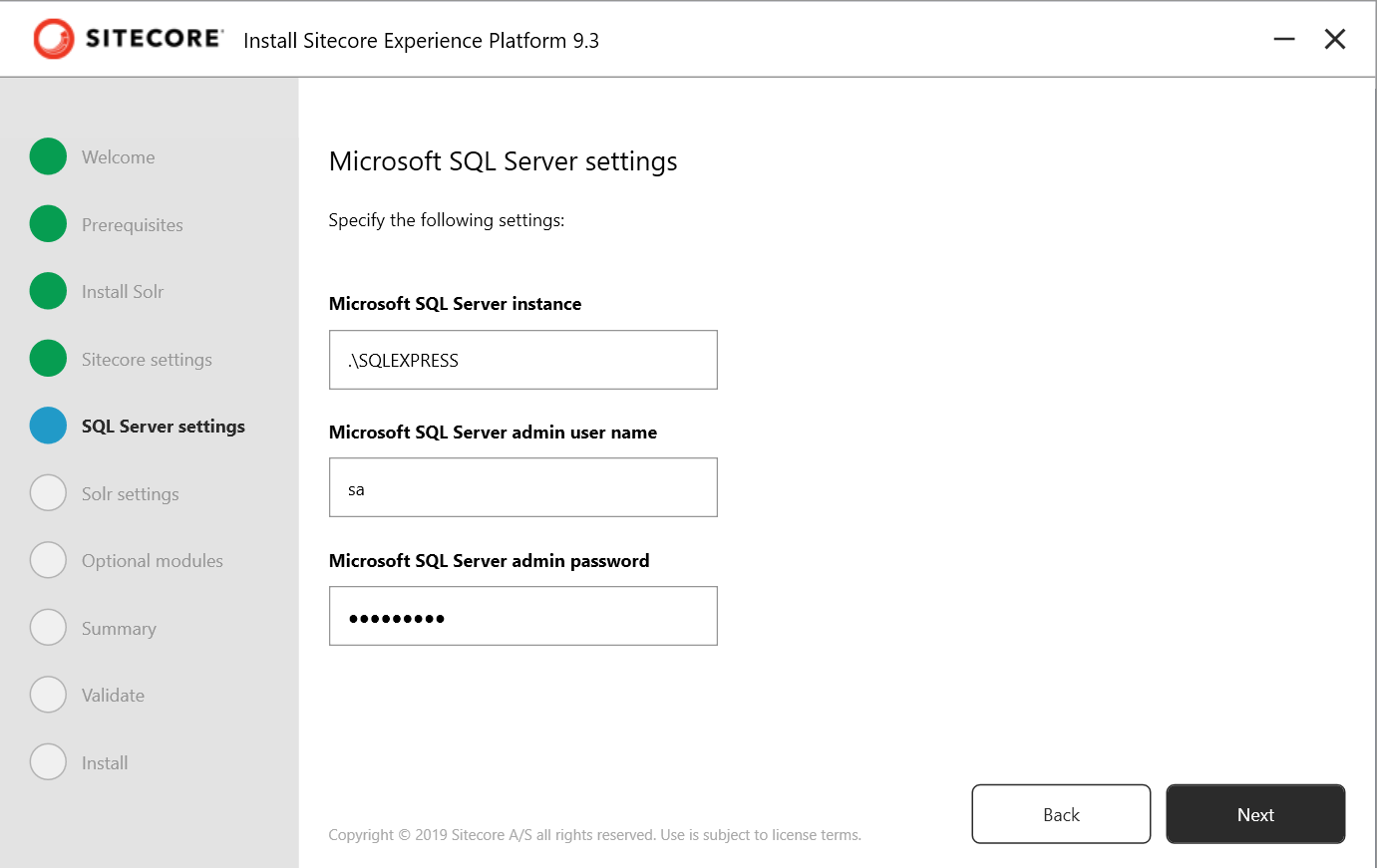
SQL Server Settings
Enter the SQL Server Instance, Admin User Name and Password and click on Next.
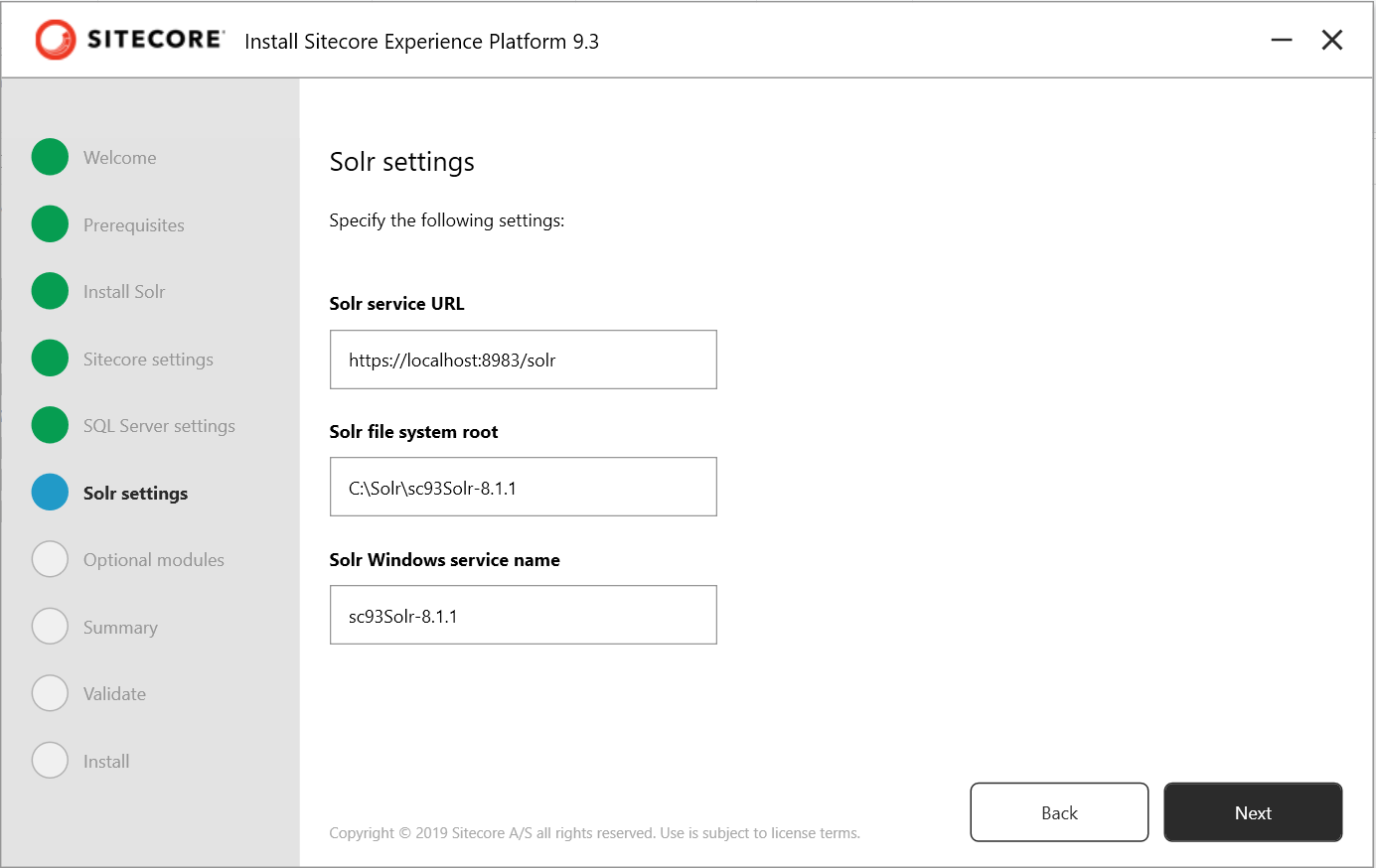
SOLR Settings
This will be pre-entered if you installed SOLR in the previous step with SIA itself. If the instance you're using is a different one, then enter the configuration of the SOLR server.
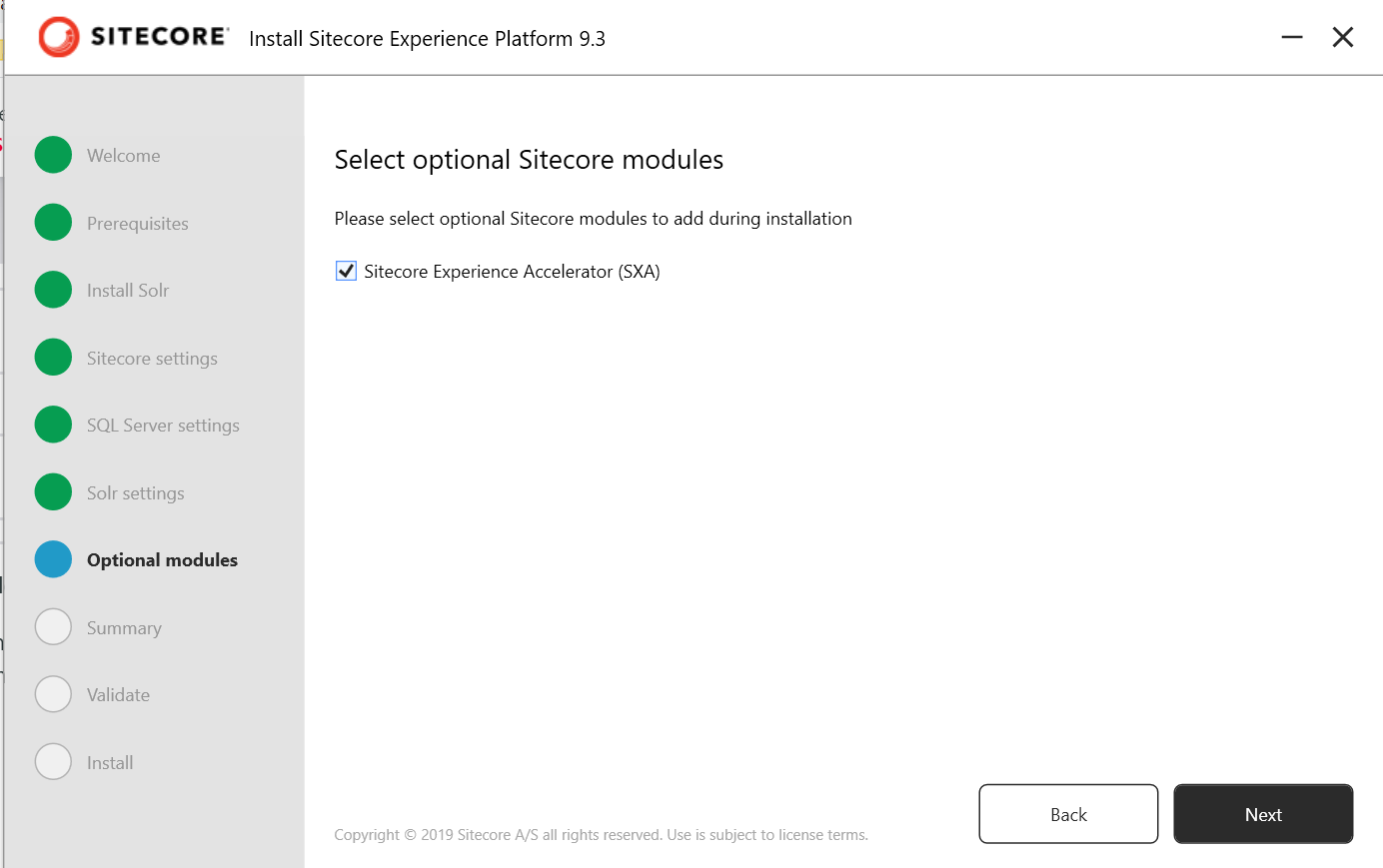
Optional Modules
This option is a new feature as well in SIA for Sitecore 9.3. You get to install Sitecore Experience Accelerator (SXA) as well, which I will be installing.
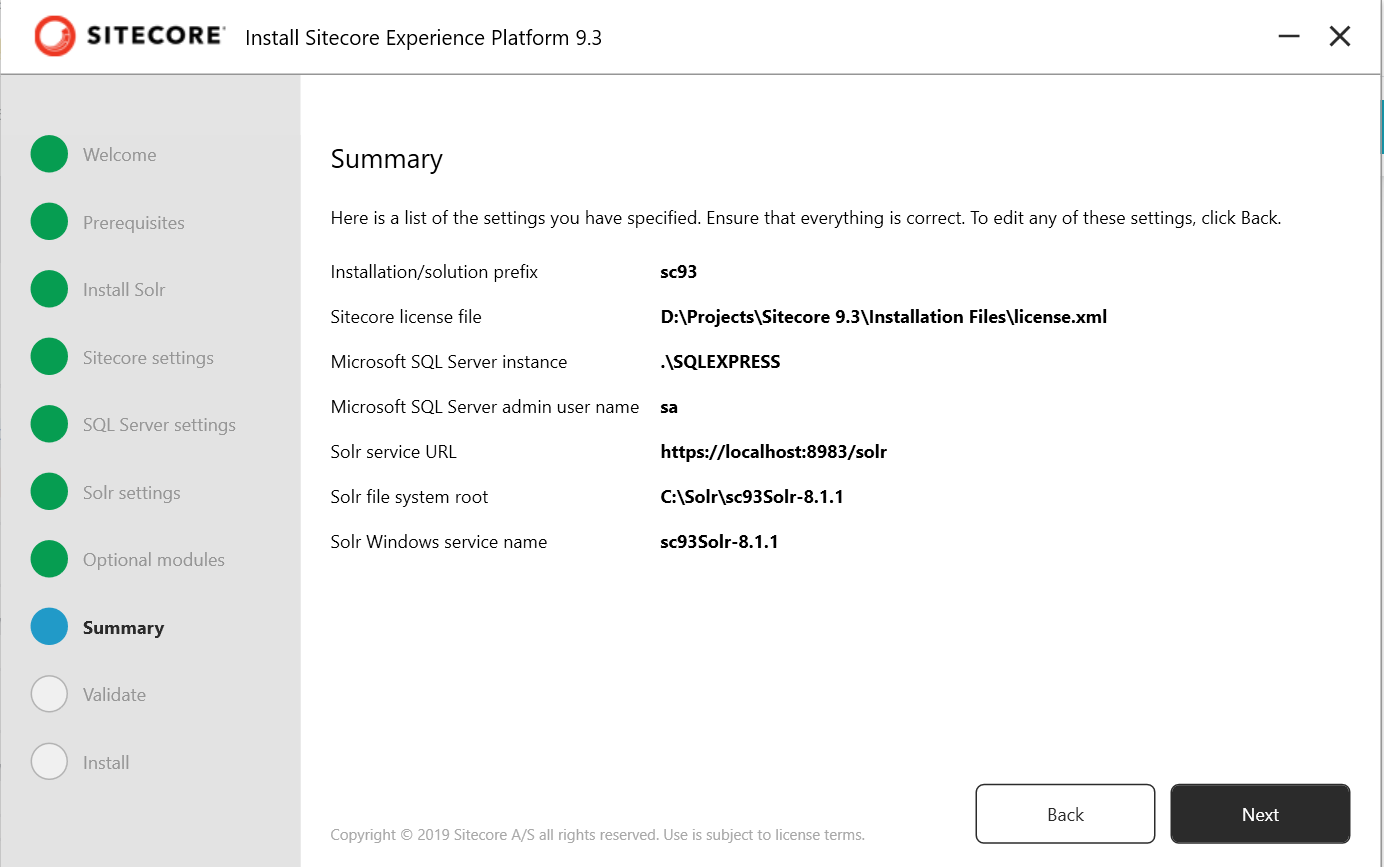
Summary
Cross-check the configuration in this step.
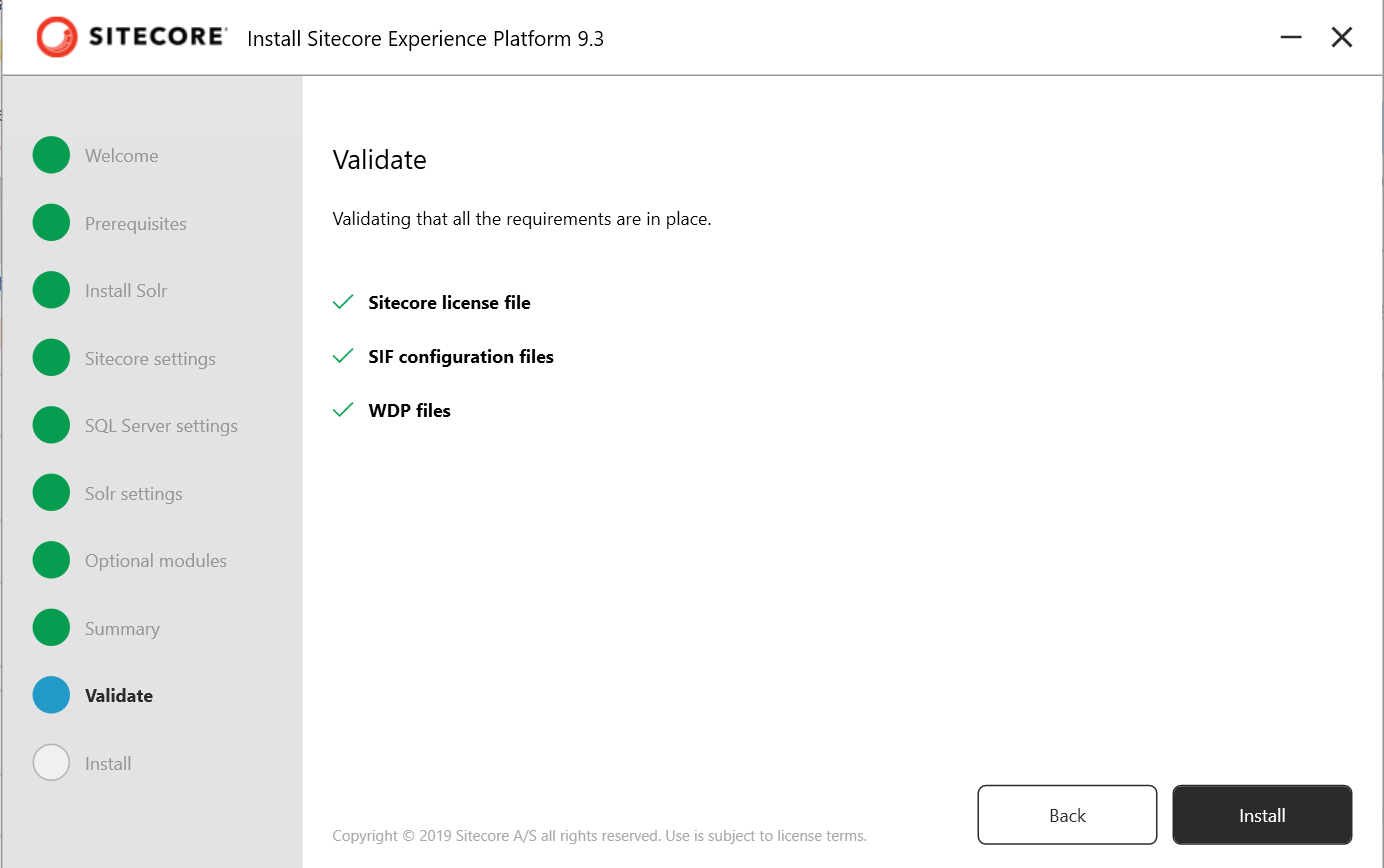
Validate
This step validates the SIF configuration, the WDP files and Sitecore License file.
Install
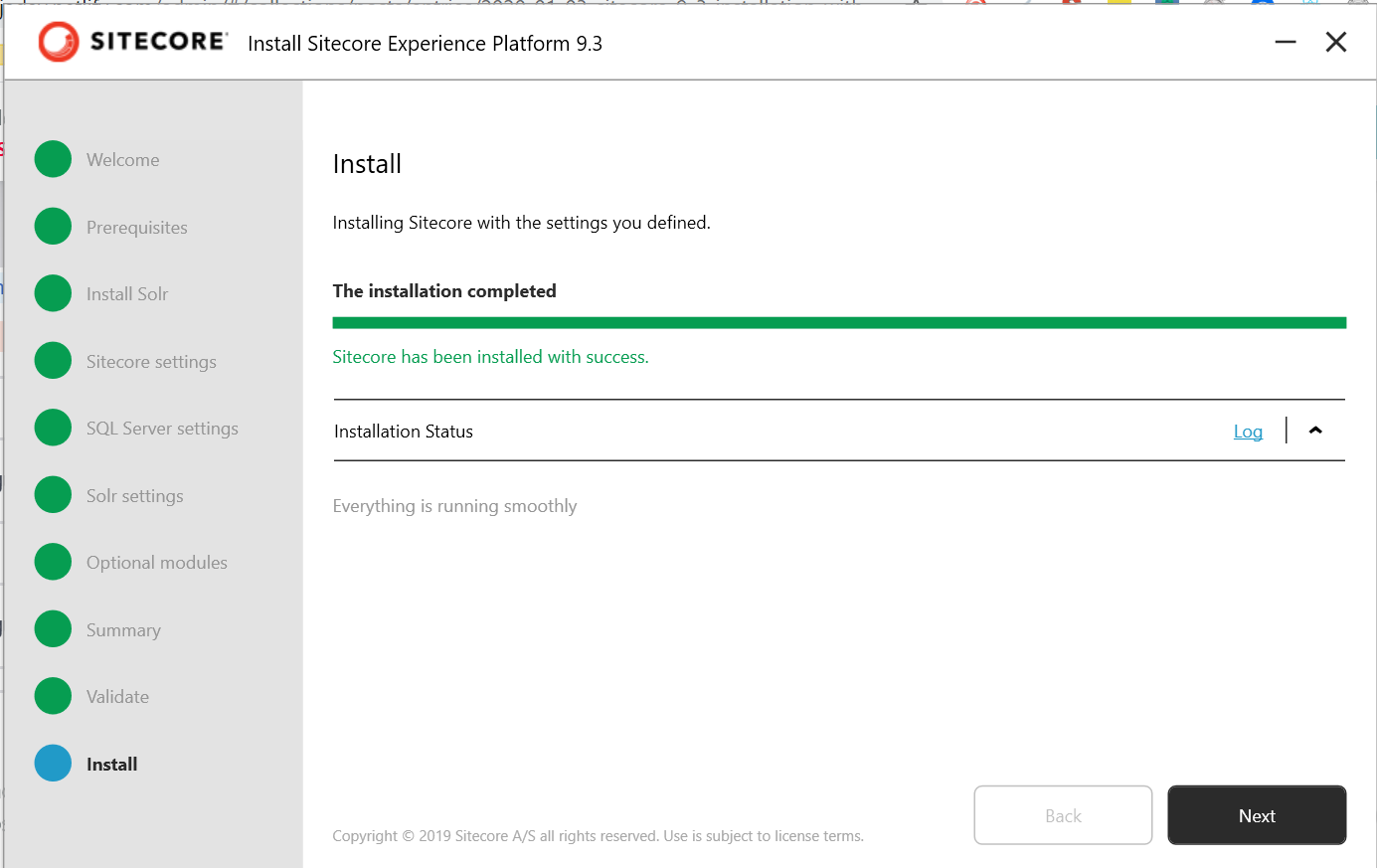
Click on Next and the installation starts. There are 2 parts of the installation, the 2nd part mostly consists of SPE installation and SXA installation.
_
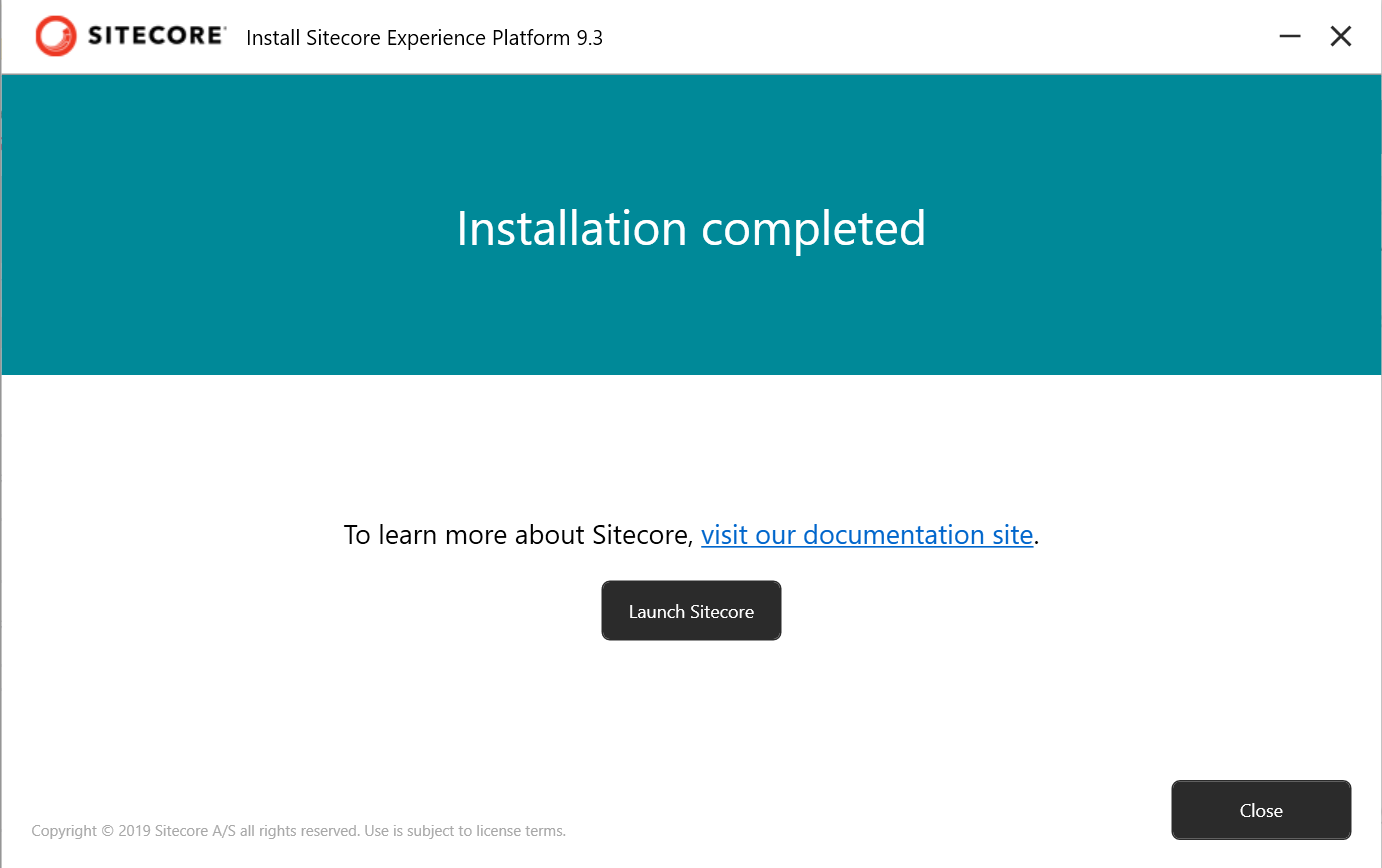
Setup Complete!!
Click on Launch Sitecore and the Sitecore Login Screen opens.